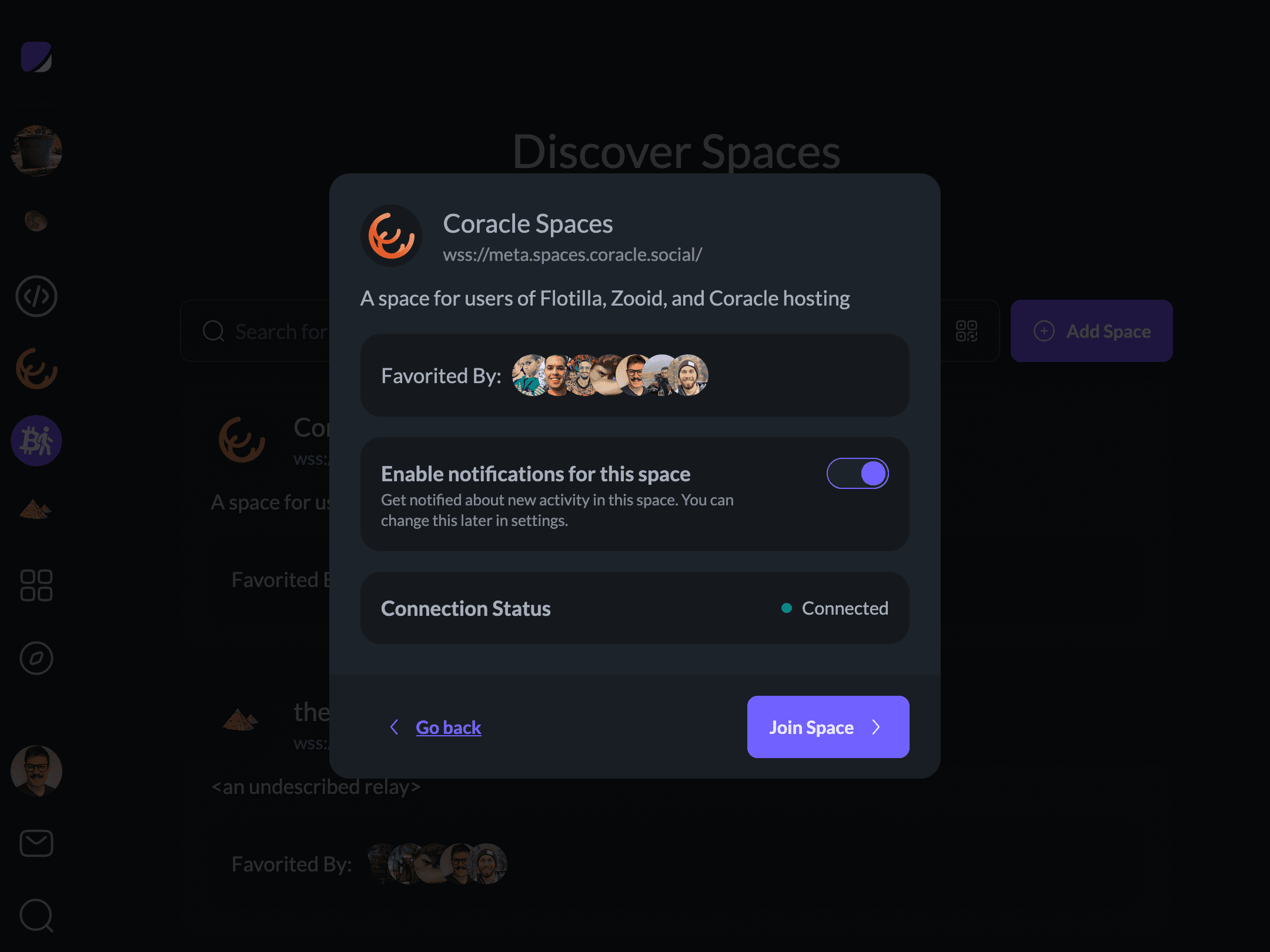
Joining a Space
Part of our guide to running an online community you actually own.
There are two main ways to join a space on Flotilla: with an invite link, or by browsing to discover existing groups. If you’re a community organizer, we recommend inviting your members with a link — the flow is much simpler for everyone.
Using an Invite Link
Invite links are meant to be dead simple. To create one, open the space’s main menu and click “Create Invite”. Flotilla generates a link pointing to the space. If your space supports it, you’ll also get an invite code you can use to grant access to other people.
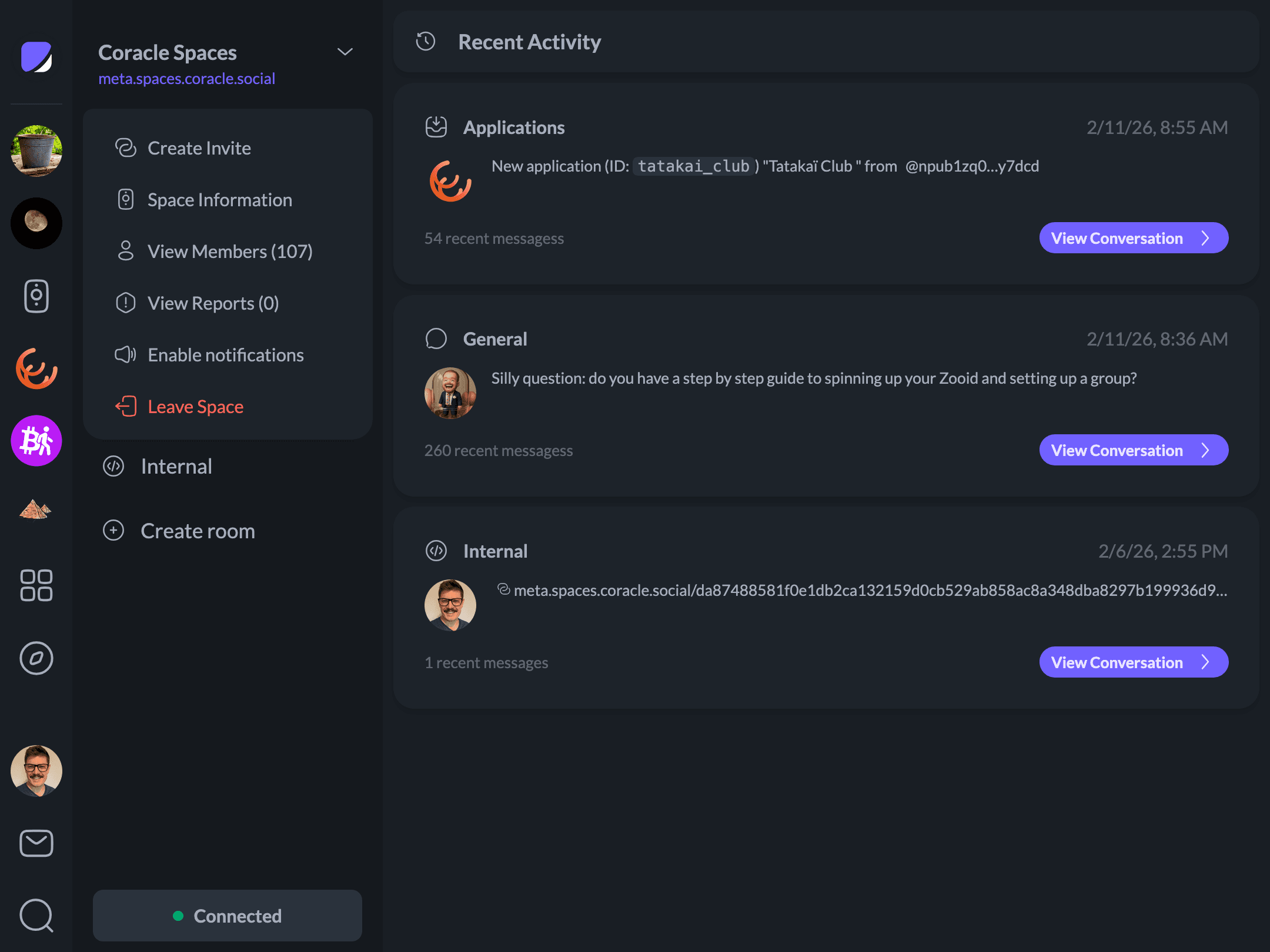
Copy and share the link, or scan it with your camera. Either way, it brings you to Flotilla, offers to install the app or continue on the web, and walks you through onboarding and login.
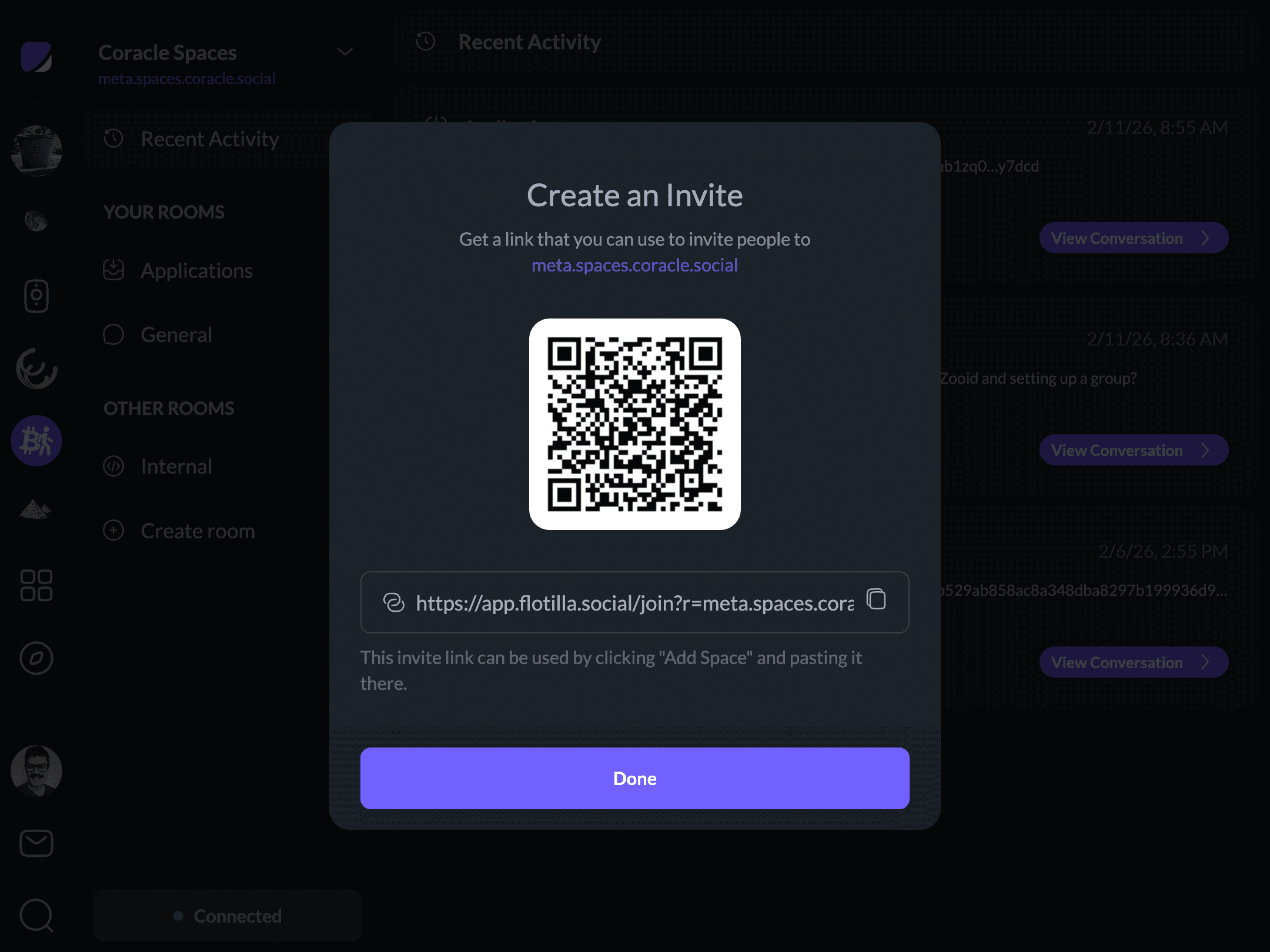
Once you’re in, you’ll be asked to confirm that you want to join the space. Click “Join Space”, and you’re all set.
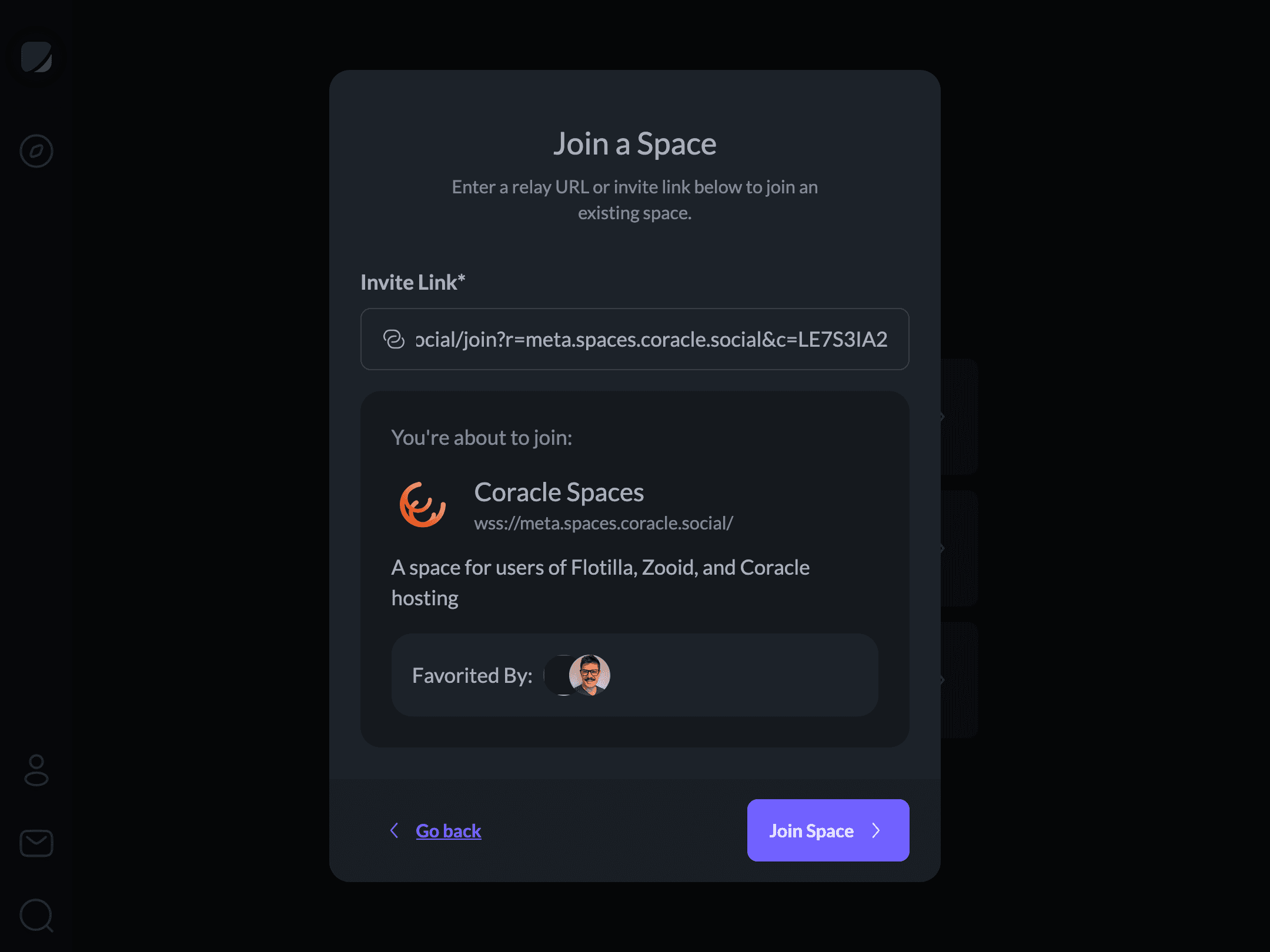
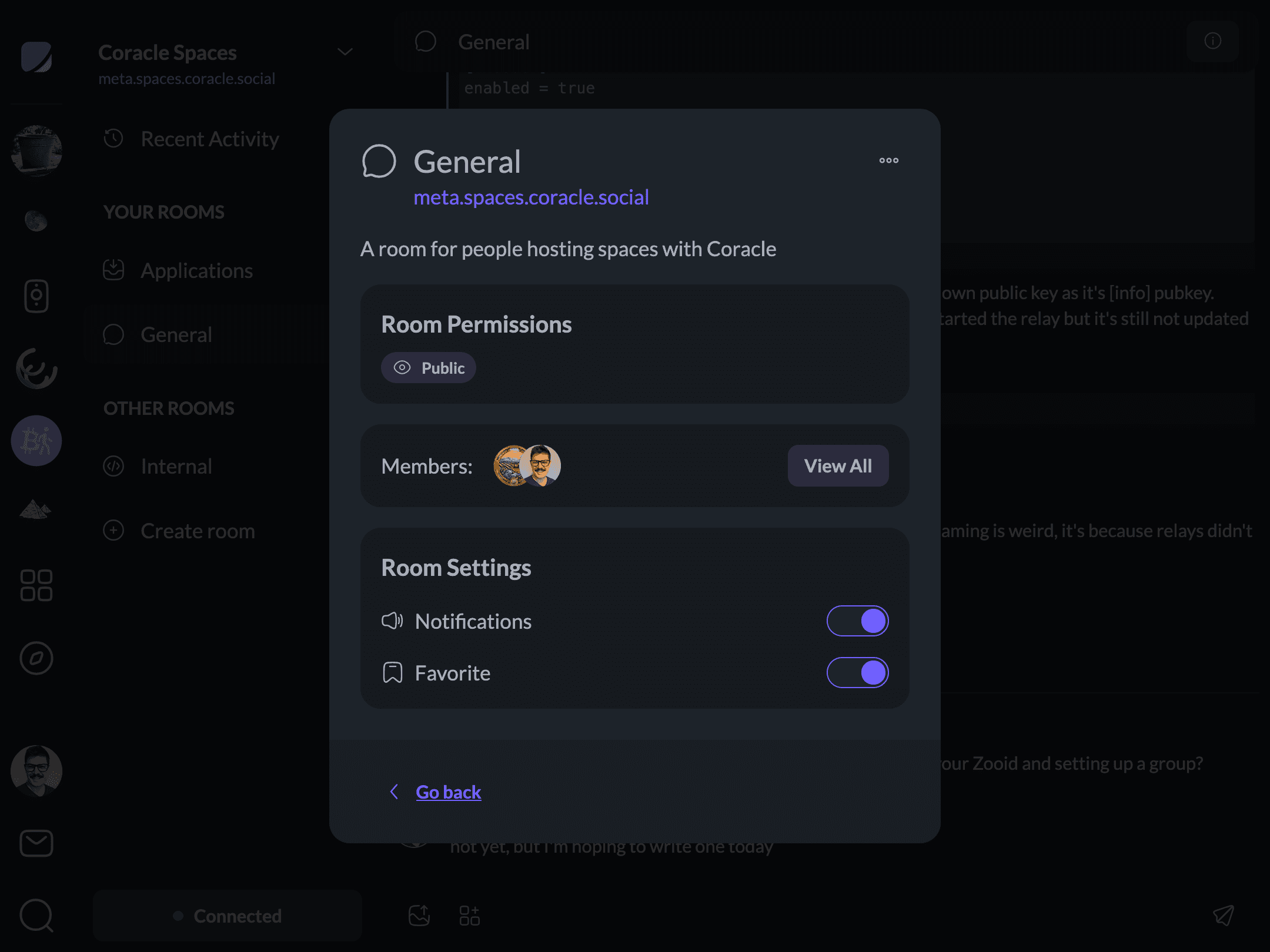
Next, you may want to set up notifications or customize which rooms appear in your navigation. Visit a room and click the “info” icon at the top of the screen. There you can view members, bookmark the room to make it more prominent in navigation, or enable notifications to stay up to date.
Discovering Spaces
You can also browse spaces on the discover page. If you follow people on Nostr, spaces that others in your social graph have joined show up here, along with a few members you might know.
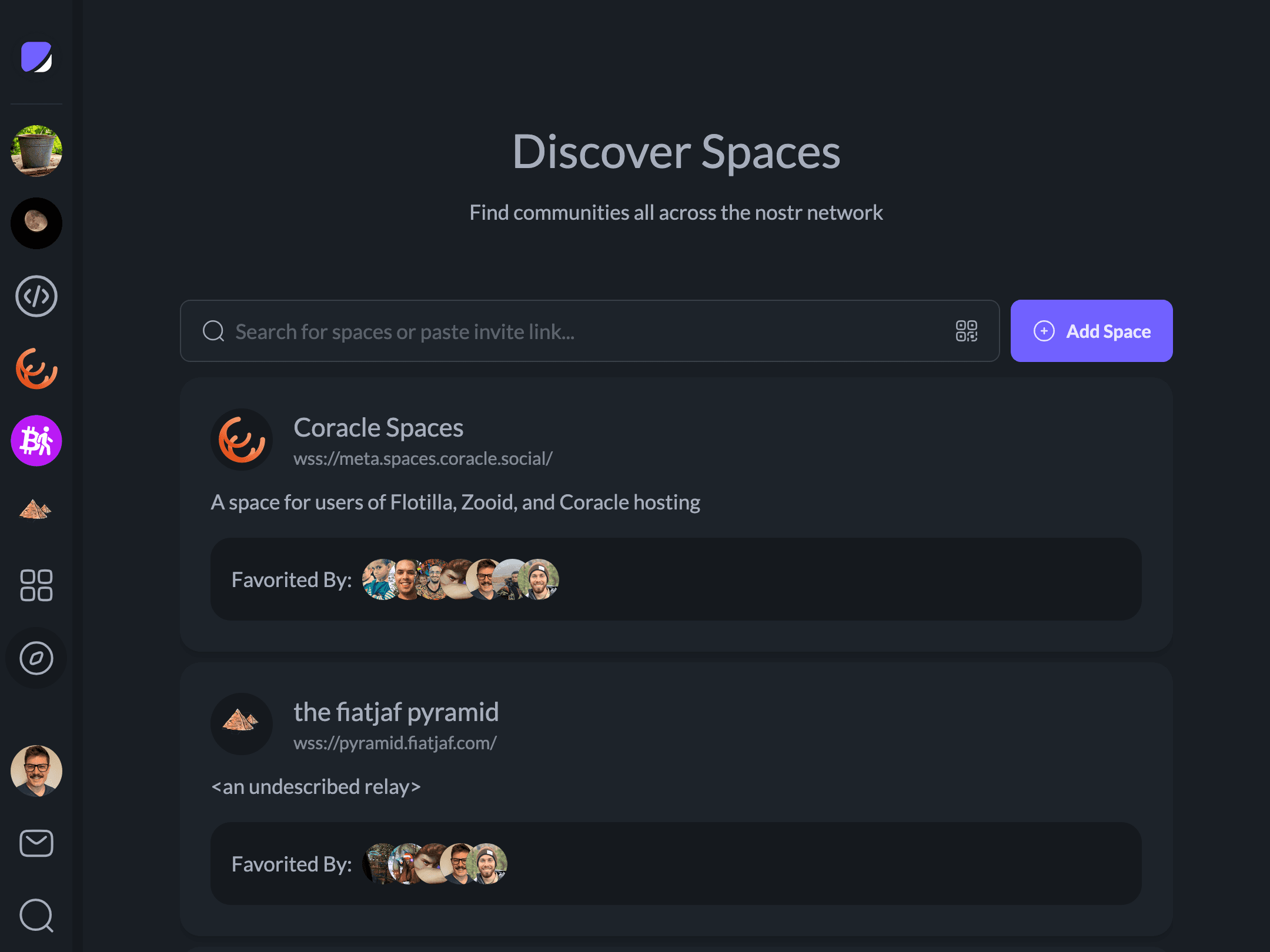
To join a space, click on it and follow the prompts. Some spaces are invite-only, in which case you may need to contact a moderator for an invite code.