
Managing a Space
Part of our guide to running an online community you actually own.
Flotilla includes a range of features built to help community organizers manage membership, moderate content, and control access.
First, a note on how spaces work: every Flotilla space is hosted by a Nostr relay, a special kind of server. Which management features you can use depends on the relay your space runs on. We recommend Zooid by Coracle, or signing up with Hosting by Coracle.
Space Details
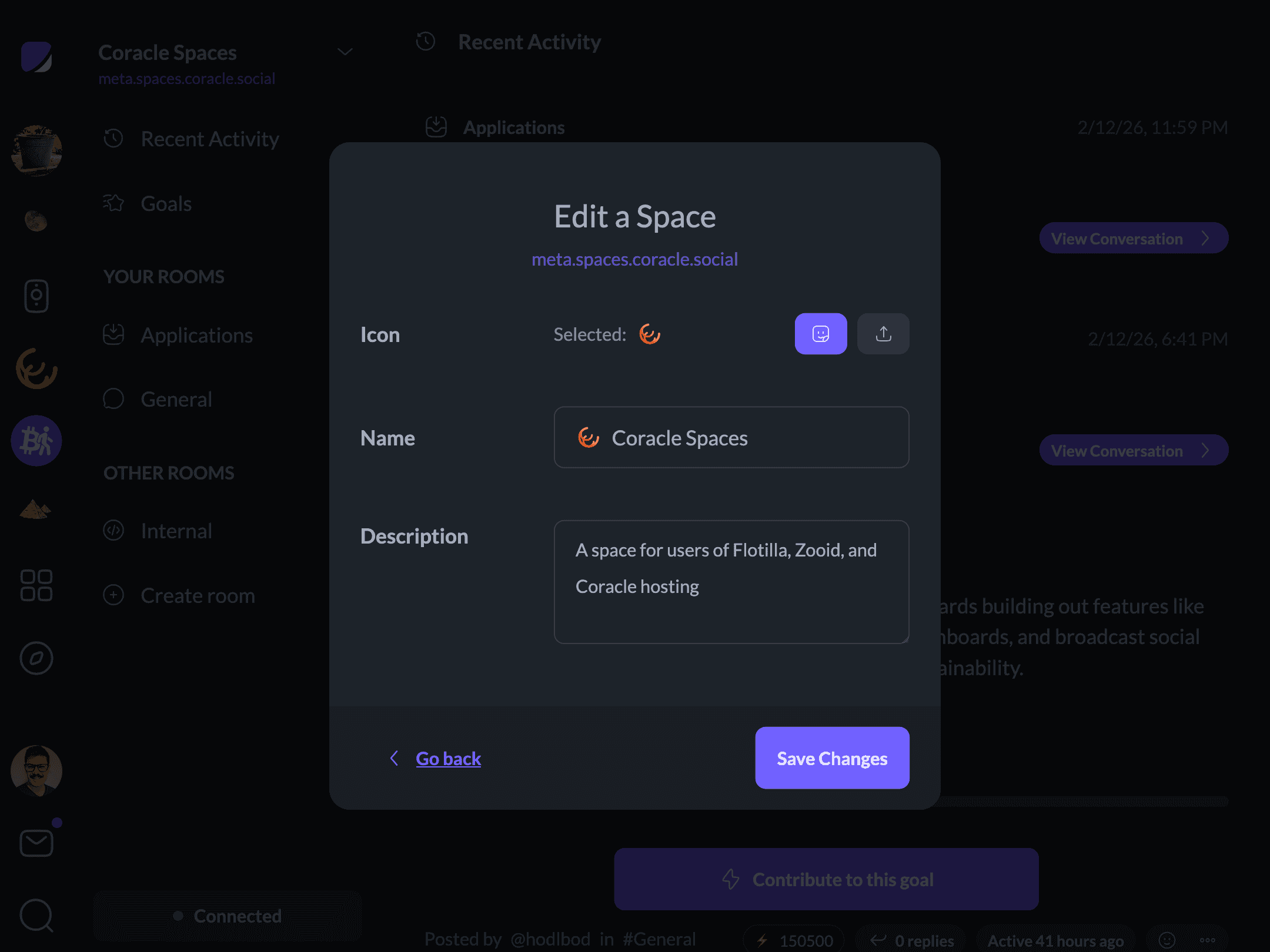
If your relay supports Nostr’s relay management API, and you have permission to use it, you can edit your space’s details right from Flotilla. Open the main space menu, click “Space Information”, then “Edit”. From there you can change your space’s name, description, and image.
Space Membership
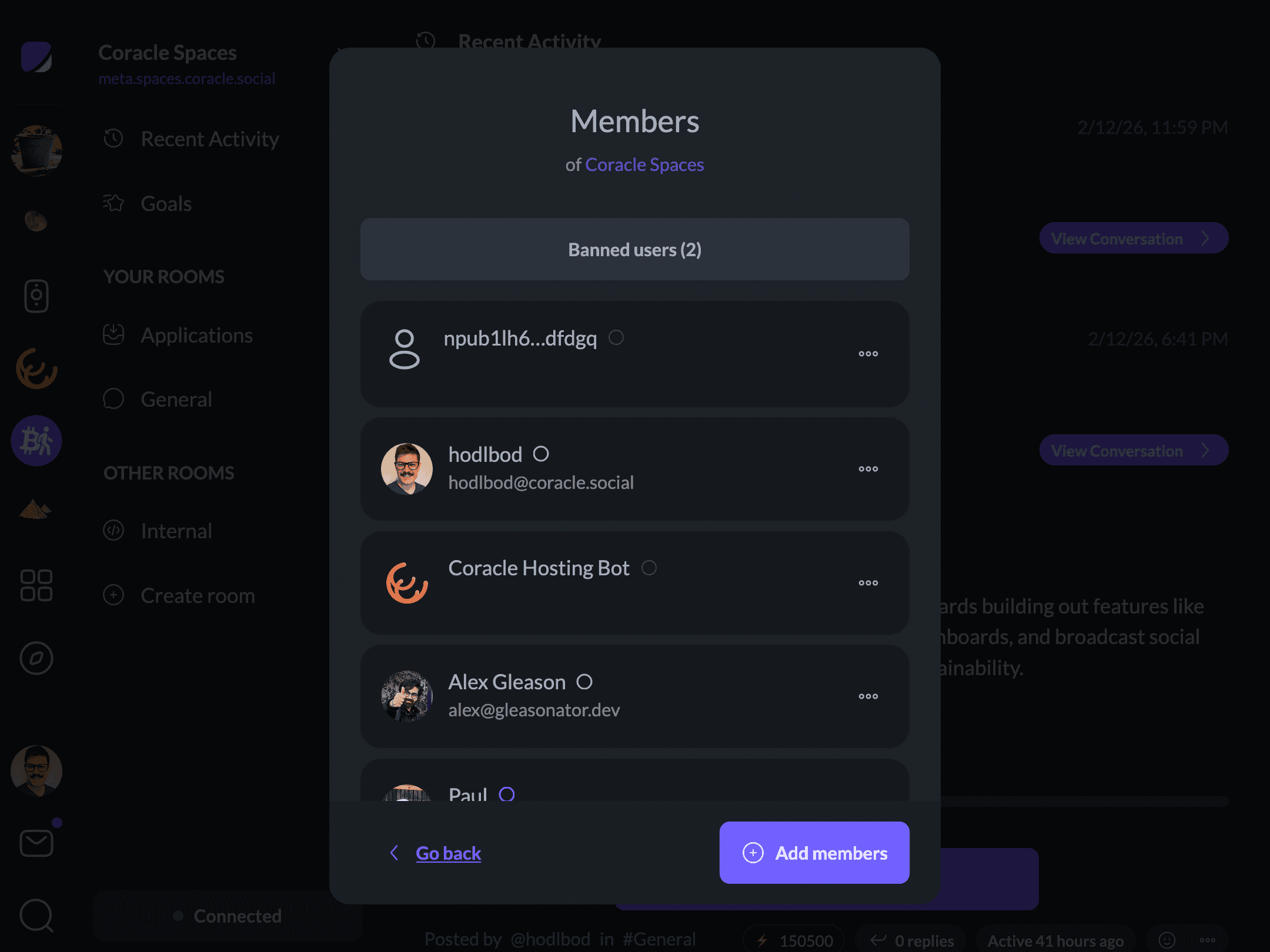
To see your members, open the main space menu and click “View Members”. This shows everyone the host relay advertises as having access to your space. For how people get onto that list in the first place — invite links, adding members by pubkey, and open-versus-private access policy — see Controlling Who Can Join Your Space.
Banning Users
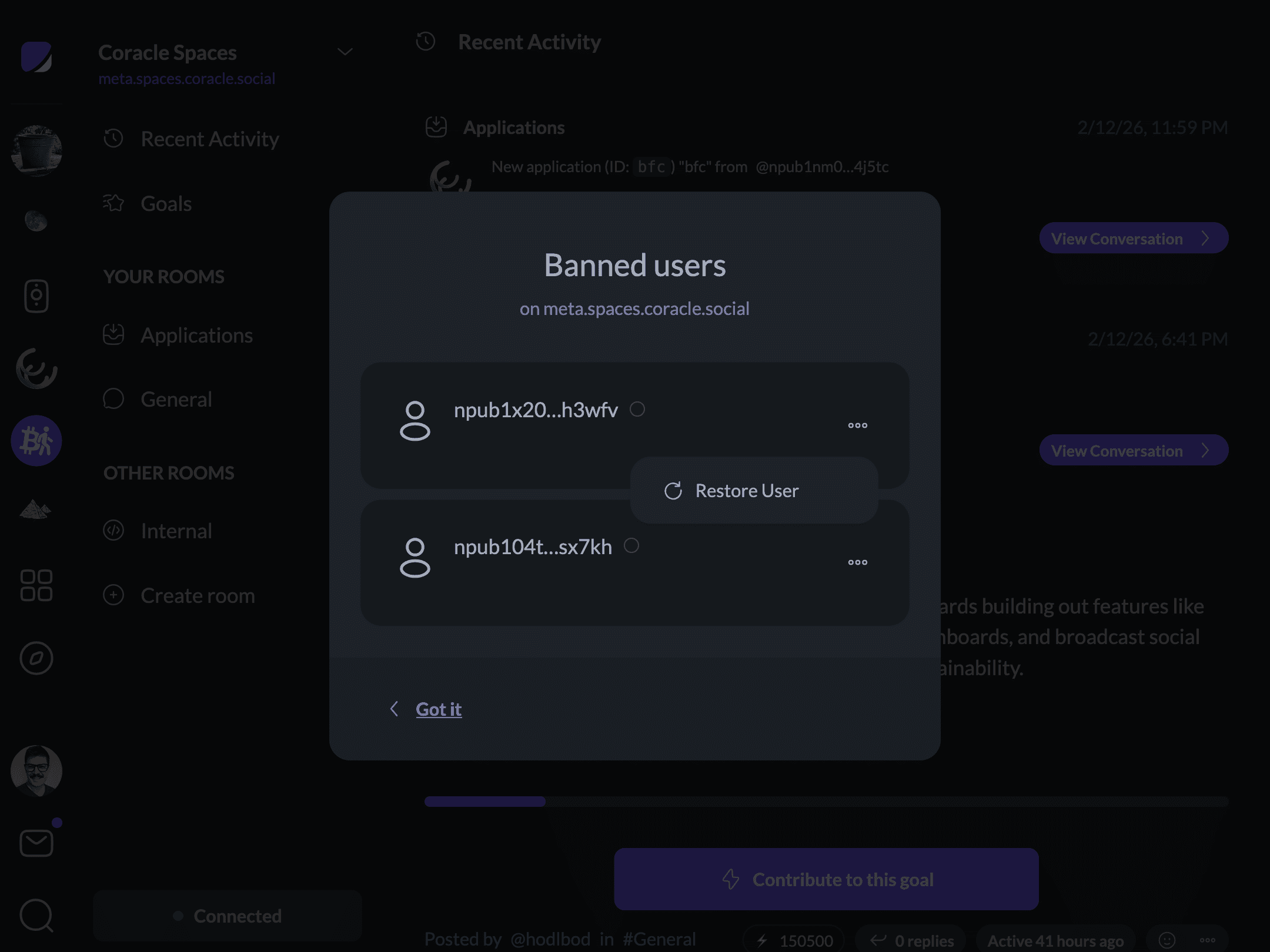
The space members dialog also lists people you’ve banned from your server, and lets you restore their membership.
You can also ban or restore members from their profile detail view.
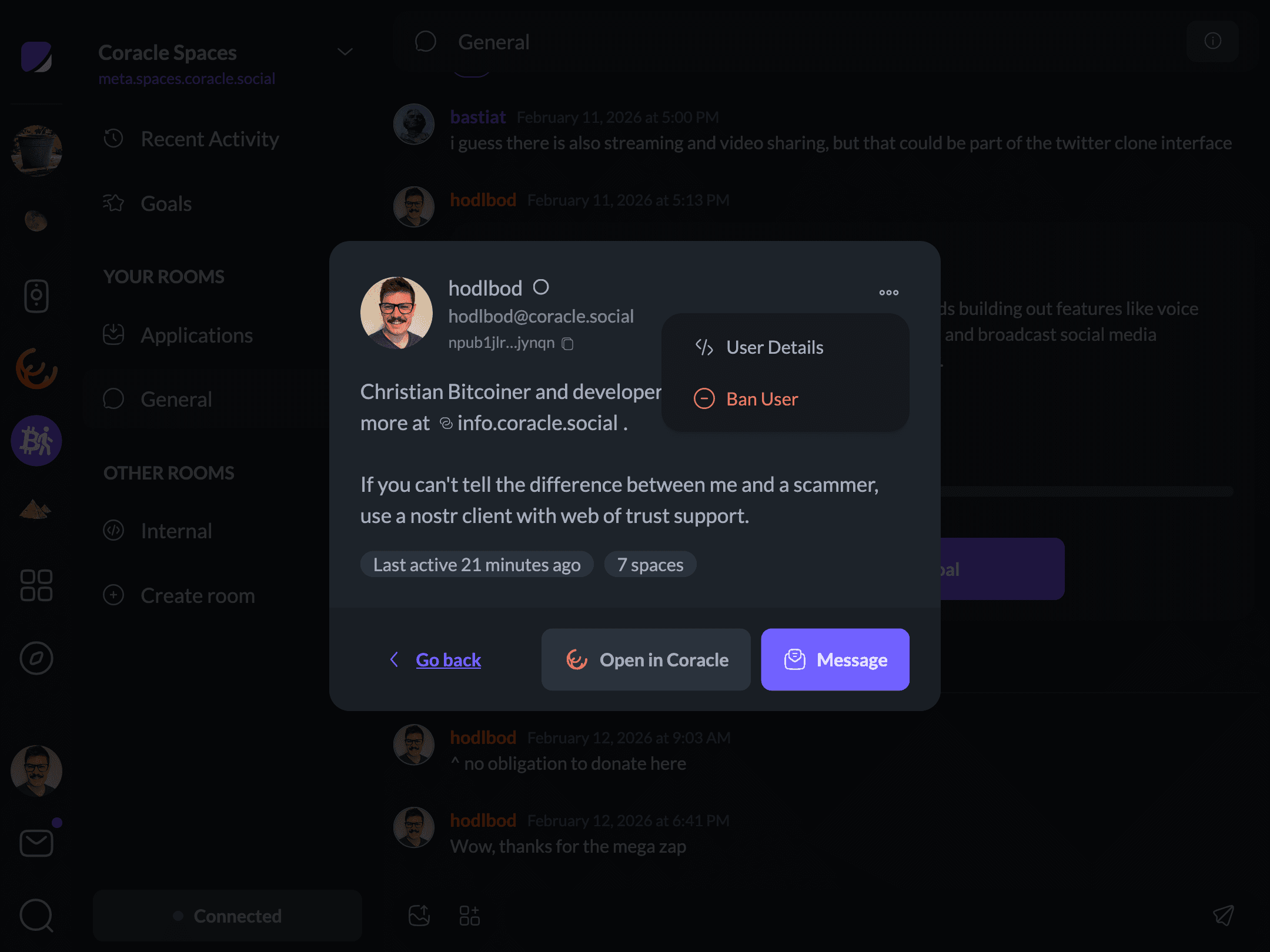
When you ban someone, their content may also be deleted from your relay, depending on the relay’s implementation (Zooid by Coracle does this for you automatically).
Reports and Moderation
You can also enlist other members of your space to help keep things in check. Anyone in the space can report a post by clicking the overflow menu next to a message.
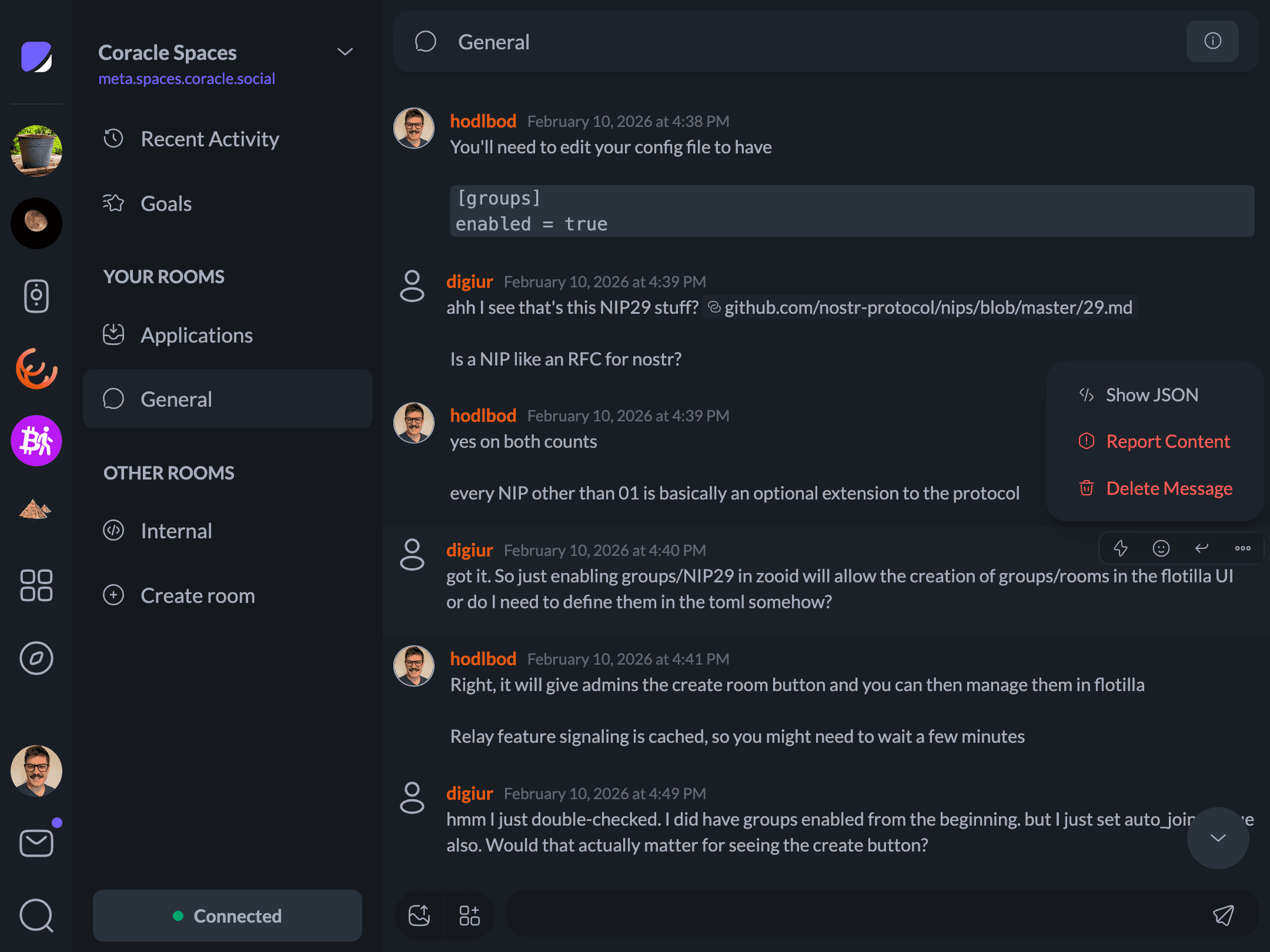
This opens a form asking for a few more details about the report. Admins can then click “View Reports” in the main space menu.
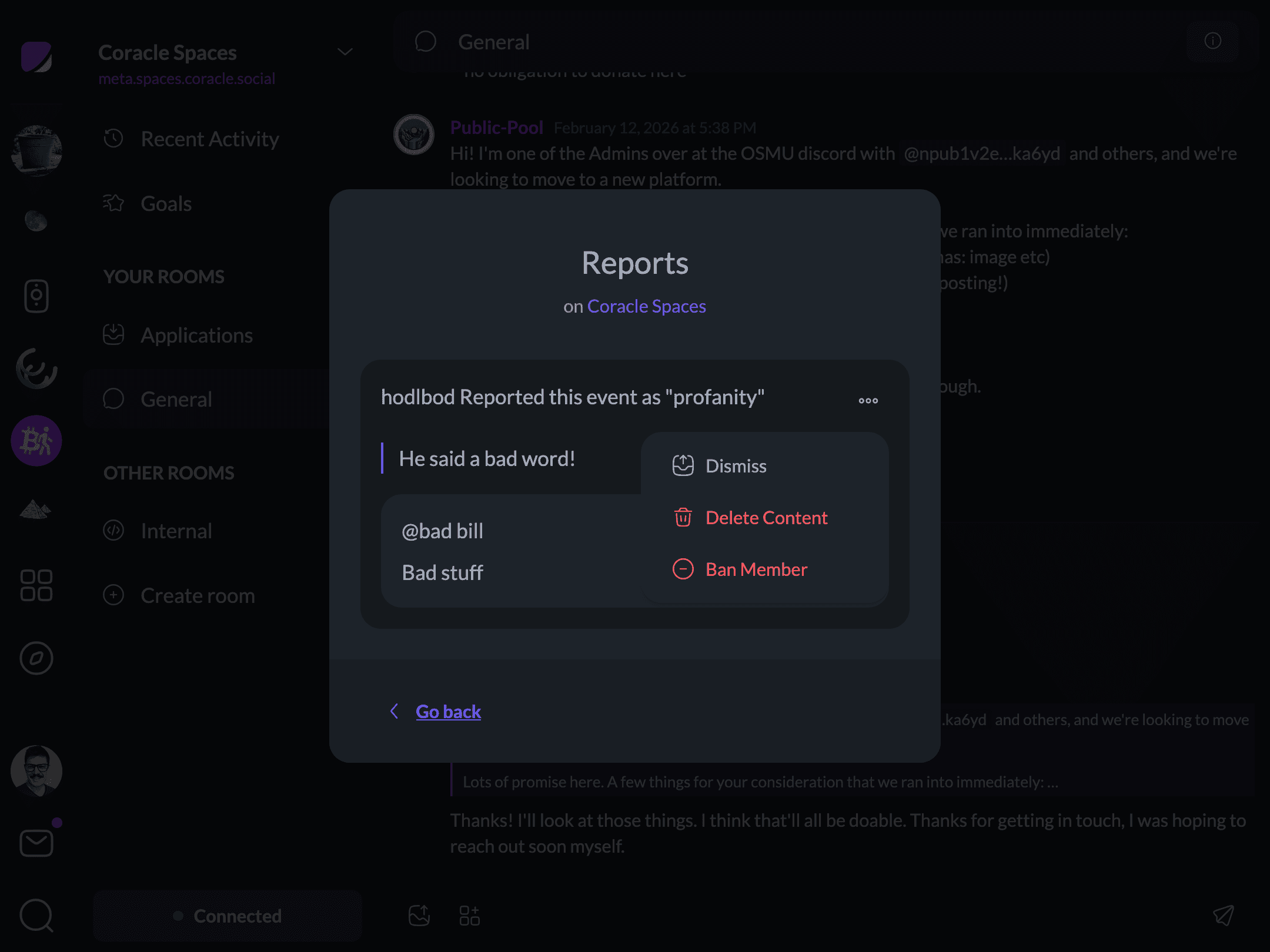
For each report, you can dismiss it, delete just the message, or ban the member from the space entirely.
Room Details
Every room can have its own policies too — default permissions, member lists, and user preferences. To find them, join a room and click the info icon at the top of the screen.
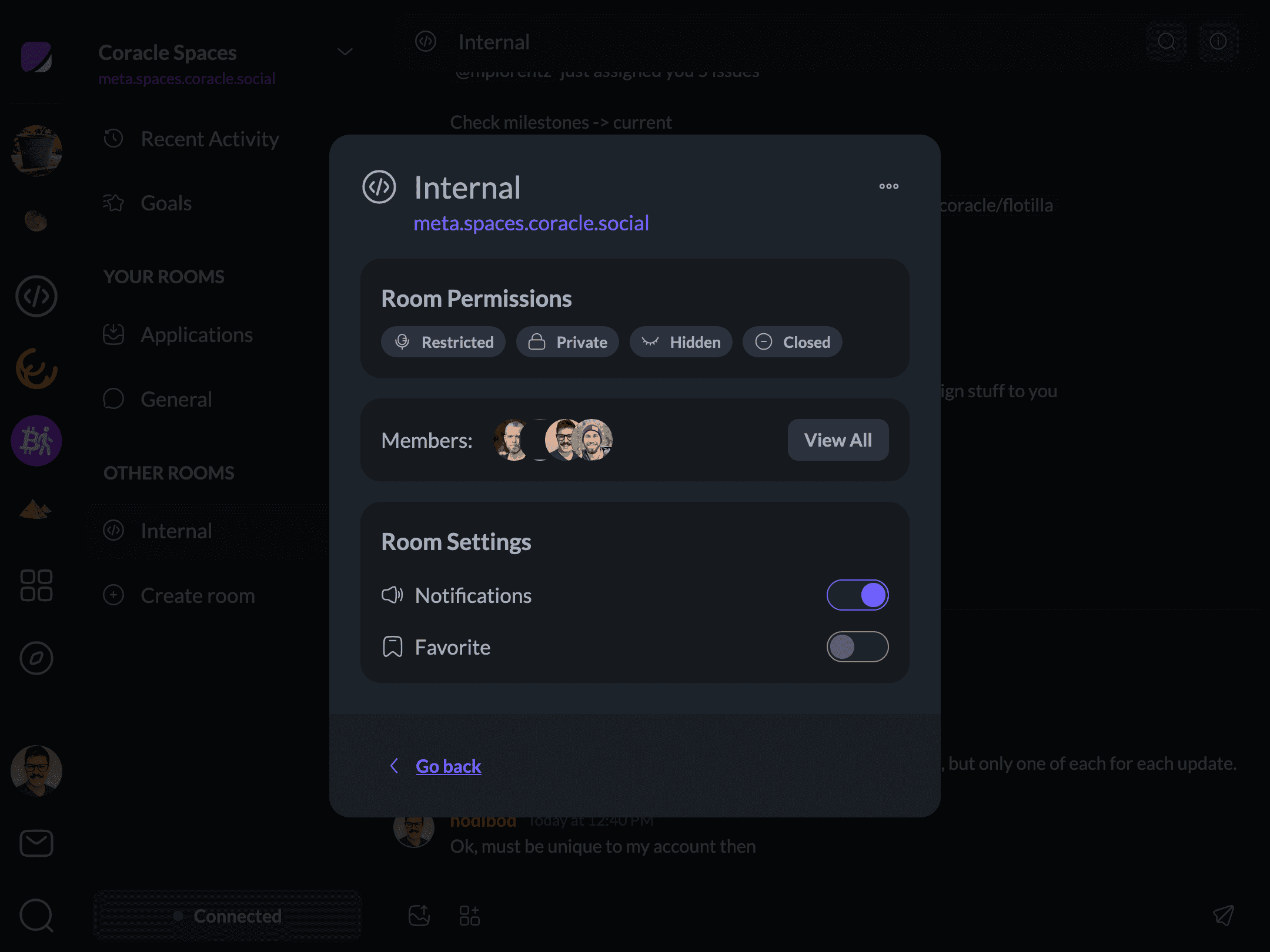
From here you can view members, choose whether you get notifications for the room, and favorite it so it sits higher in the space’s navigation.
If you’re an admin, you can also edit or delete the room and add or remove members.
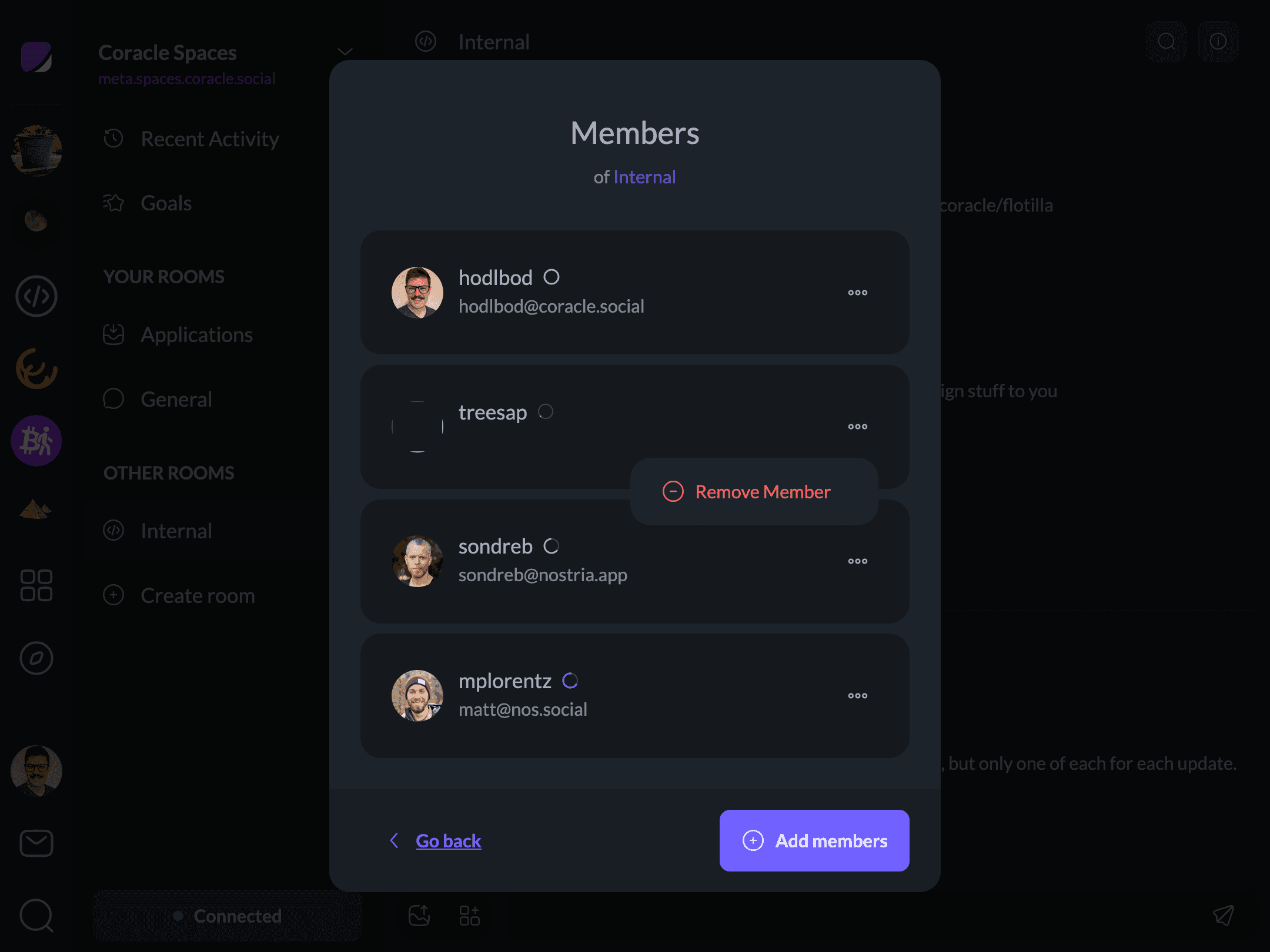
Room Permissions
Rooms have permissions that control how non-members can interact with them:
- Restricted rooms only accept messages from members.
- Messages in Private rooms can only be seen by room members.
- Hidden rooms are entirely hidden from non-members.
- Closed rooms are invite-only — there’s no way to request access.
Space Roles
Admins can create custom, color-coded roles to help organize a space’s membership. From the member directory or member management screens, create a role with a label, a description, and a color, then assign it to whichever members it applies to. Assigned roles appear next to a member’s name in the directory, so anyone browsing can see at a glance who holds which role.
It’s worth being precise about what roles are and aren’t. They’re organizational and display labels — a way to mark out moderators, event hosts, or any other group you want to identify — not a fine-grained permission system. Assigning someone a role does not by itself let them moderate or administer the space; that’s governed separately, by the underlying relay (its owners and the admins it recognizes). To give someone real moderation powers — banning members, editing room permissions, and so on — you need a relay-level admin grant, independent of any role label.